

Automating Lead and Account Signals with n8n and APIs
Automate lead capture, enrichment, scoring, and routing with n8n and APIs to cut manual work, speed responses, and prioritize high-value prospects.
9 februari 2026

Manual lead tracking wastes time and risks errors. With n8n, you can automate workflows to save hours, prioritize leads, and act on signals faster. This platform connects tools using visual workflows and APIs, enabling instant data exchange across your tech stack.
Here’s what n8n can do:
Reduce manual CRM tasks by 82% and research time by 90%.
Process 100 leads in 3.5 minutes - 50% faster than traditional tools.
Enrich leads with 50+ data points (e.g., company size, revenue, tech stack).
Route leads to the right sales reps based on custom criteria.
How it works:
Set up triggers (e.g., form submissions, CRM updates, or scheduled checks).
Enrich lead data via APIs and map it to your CRM fields.
Use logic to score and prioritize leads.
Automate notifications and assignments for your sales team.
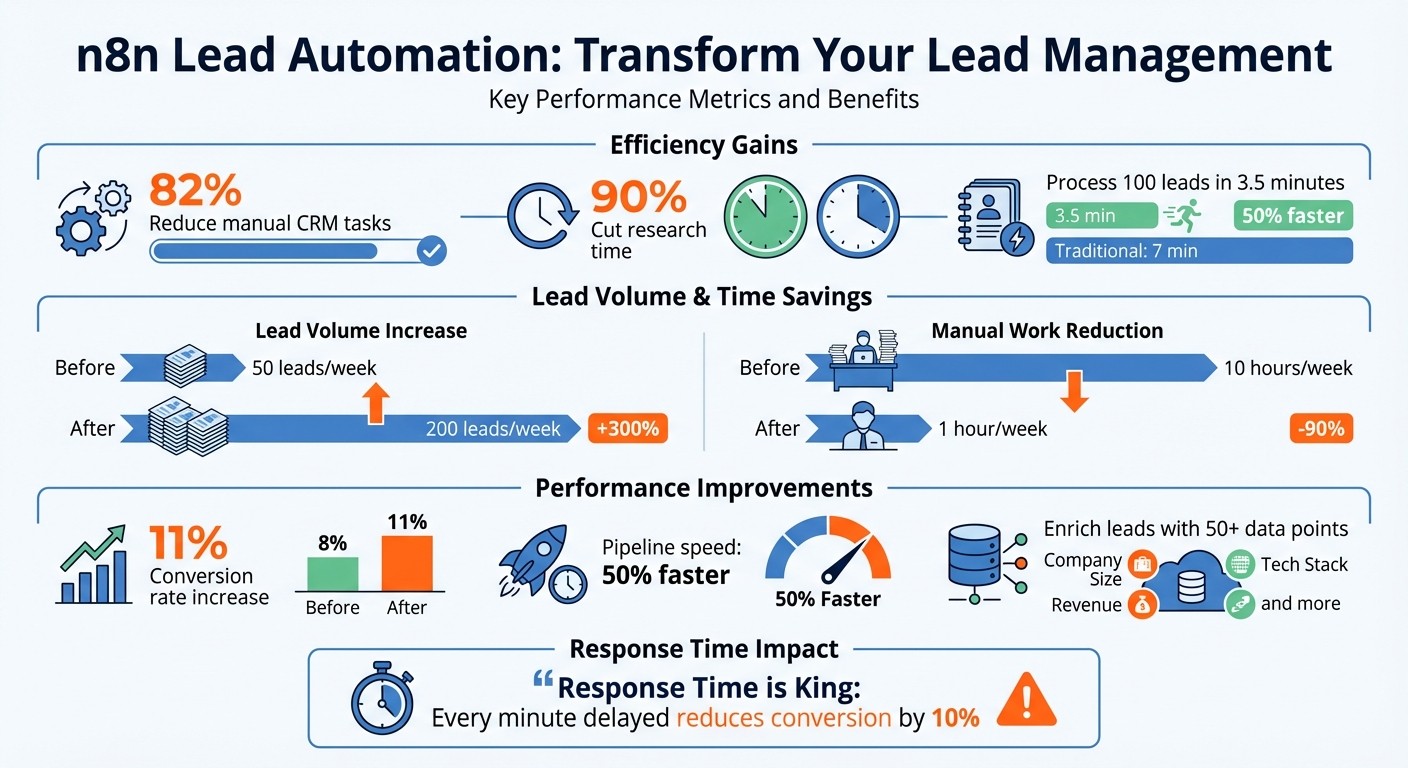
n8n Lead Automation Impact: Key Performance Metrics and Time Savings
How I Automate Lead Generation With AI & Automation in n8n (Copy This)
Setting Up n8n for Lead Signal Automation
Start by clicking "Add workflow" in the Workflows tab. From there, you can drag and drop nodes to create your workflow: Trigger → Get Data → Apply Rules → Calculate Score → Update Record.
If you're new to n8n, a simple two-node workflow - like a trigger that sends a Slack notification - can help you confirm that the connection works before adding more complex steps like data enrichment or CRM updates. Once the basics are functional, you can build on them by adding logic and additional nodes. A handy feature is pinning a node's output, which allows you to save and test downstream steps with static data instead of re-triggering the entire workflow.
It's also a good idea to label your credentials clearly (e.g., "Slack – Sales Workspace") to avoid confusion. Adding an Error Trigger node can help notify your team if something goes wrong during processing. This initial setup forms the backbone for configuring precise trigger actions, which are explained in the next section.
How Workflow Triggers Work in n8n
Triggers are what kick off a workflow. They monitor specific events - like a form submission, a CRM update, or a scheduled time - and start the workflow immediately when those events occur.
Webhook nodes are ideal for real-time lead capture. For instance, when someone fills out a Typeform or Google Form, the Webhook trigger activates instantly, starting the workflow without delay.
App-specific trigger nodes integrate directly with platforms like CRMs. These triggers launch workflows when specific actions occur, such as creating a new lead or updating a property like "Lead Status."
Schedule triggers (Cron) are perfect for tasks that need to run at regular intervals - hourly, daily, or weekly. Use these for batch jobs like scraping LinkedIn profiles for prospects or auditing your lead database. In testing, n8n processed 100 leads in 3.5 minutes using a scheduled workflow - 50% faster than the automation platforms like Zapier or Make.
"Response Time is King: Every minute delayed reduces conversion by 10%."
Jitesh Dugar, n8n Expert
Understanding how these triggers work will help you choose the right one for your lead source.
Selecting the Right Triggers for Your Workflow
The trigger you choose depends on your lead source and the type of signal you're monitoring. Here's a quick breakdown of trigger types and their best use cases:
Trigger Type | Best Use Case | Signal Type |
|---|---|---|
Webhook | Form submissions (e.g., Jotform, Typeform) | Real-time Intent |
App Trigger | CRM property changes (e.g., HubSpot, Salesforce) | Lifecycle/Account Changes |
Schedule | Web scraping, API polling, batch scoring | Discovery/Firmographic |
Manual | Testing or one-off data enrichment | On-demand |
For tasks that require immediate action - like routing a "Contact Us" form submission to the right sales rep - Webhook triggers are the way to go. If you're tracking CRM updates, such as a lead moving from "Prospect" to "Qualified", app-specific triggers are more appropriate.
When working on lead generation tasks that involve tools like Google Maps or social media, set up a Schedule trigger to run during business hours (e.g., 8:00 AM). This ensures your CRM is updated before the sales team starts their day. If your workflow involves automated outreach, such as sending LinkedIn messages, include Wait or Throttle nodes to avoid exceeding platform limits. LinkedIn typically allows 100–200 connection requests per week.
To keep things clean, filter leads right after the trigger using IF or Filter nodes. This step can remove entries that lack critical details - like a valid email or company website - and prevent duplicates from clogging up your CRM. Picking the right trigger is key to keeping your lead management process efficient and effective.
Enriching Lead Data with APIs
Enhancing raw lead data through APIs equips your sales team with the insights they need to focus on the right opportunities. After triggering your workflow, the next step involves enriching basic lead details. APIs can fetch additional information such as company size, industry, location, or professional contact details - key data points that help your team tailor and prioritize their outreach efforts. The HTTP Request node is a powerful tool for connecting to external enrichment services, especially when no dedicated n8n node is available. With this node, you can easily integrate third-party services. To get started, you'll need to handle authentication and securely store API credentials.
Connecting APIs to n8n Workflows
Authentication is the first step in API integration. n8n simplifies this process by storing sensitive information like API keys, passwords, and tokens in its centralized Credentials Management System. This approach ensures you don’t hardcode credentials directly into your workflows. Most modern APIs rely on header-based authentication, using API keys (e.g., X-API-Key or Authorization) or bearer tokens (Authorization: Bearer <token>). For platforms like HubSpot or Salesforce, OAuth2 is the standard - it securely exchanges a Client ID and Client Secret for an access token without exposing passwords.
When possible, use predefined n8n nodes like Clearbit or Google Sheets to streamline setup. For OAuth2 configurations, request only the permissions your workflow requires (e.g., read:leads) to minimize security risks. Always use HTTPS to encrypt data during transmission, and rotate API keys periodically to maintain robust security.
In October 2024, Explorium introduced an n8n template for HubSpot lead enrichment. This workflow uses a HubSpot webhook to detect new contacts, matches them against Explorium's database using name and company data, and enriches the HubSpot record with professional emails and phone numbers. It employs a "Loop Over Items" node to process contacts in batches of six and uses Header Auth (Bearer token) for the Explorium API connection.
Transforming API Data for Use in Your Workflow
Once you retrieve data from an API, the next challenge is aligning it with your CRM’s structure. API responses often don’t match your CRM’s fields directly. Use Set nodes or n8n expressions to map API response fields to your CRM’s specific properties. For example, if an API returns a field named professions_email, you can map it to your CRM’s email field using an expression like {{ $json.professions_email }}.
If an API returns multiple email addresses or similar array values, combine them into a single comma-separated string to fit CRM text fields. To avoid workflow errors, handle empty fields by replacing them with "null." Additionally, clean up sample data or special characters before mapping. After enrichment, use a Filter node to validate the data and ensure only high-quality matches are sent to your CRM. For example, HubSpot’s API rate limits - 100 requests per 10 seconds - make batch processing (e.g., six leads at a time) essential for staying within those limits.
Prioritizing Leads and Accounts Using Conditional Logic
After enriching your lead data, the next challenge is figuring out which leads need immediate attention and which can be nurtured over time. With n8n's conditional logic, you can automatically evaluate leads based on factors like company size, job title, or behavior. This system ensures your sales team focuses on high-value opportunities while lower-priority leads are seamlessly added to nurturing workflows.
Building Conditional Logic in n8n
n8n provides three powerful nodes to help you create conditional logic. Here's how they work:
IF Node: Perfect for simple yes-or-no checks, like determining if an email address is from a business domain or a personal one.
Switch Node: Ideal for routing leads based on multiple predefined values. For instance, you could assign leads to specific team members depending on their industry - such as Technology, Healthcare, or Finance.
Code Node: Designed for more advanced scenarios, this node lets you write custom JavaScript to calculate lead scores based on multiple criteria.
A typical lead-scoring workflow might start with a Set node to initialize a lead_score variable at 0. From there, different branches add or subtract points based on specific actions or attributes. For example, you could add 30 points for downloading a pricing guide, 20 points for a Director-level title, and subtract 50 points for unsubscribing or using a non-business email. Once all branches are evaluated, a Merge node consolidates the scores before updating your CRM.
"Building your own system in n8n gives you incredible flexibility and control. Your rules are your rules."
– n8npro.in
You can also use AI nodes, like GPT-4, to analyze qualitative data and categorize leads into tiers: Hot (80–100), Warm (60–79), and Cold (40–59). Each tier can trigger specific automated actions in the next stages of your workflow.
Once your leads are scored and tiered, the next step is to automate their assignment and notifications.
Automating Lead Assignments and Notifications
Streamline lead routing by setting up automated workflows. For instance, an IF node can check if a lead's score exceeds a certain threshold (e.g., 80). If it does, you can trigger an immediate Slack notification that includes the lead's name, company, and score. Slack can even be configured to "Send and Wait for Response", allowing for manual approval when needed.
For assigning leads, integration nodes can update your CRM automatically. High-priority accounts might be routed to platforms like Sales Simplify to track deals or to Autopilot for adding contacts to targeted marketing lists. Meanwhile, lower-priority leads can be logged in Google Sheets for future reference or placed into low-frequency nurture campaigns using your preferred marketing automation platforms. If you need to interact with a service that doesn’t have a pre-built node, the HTTP Request node allows you to connect to any REST API endpoint.
"Lead scoring isn't a set-it-and-forget-it thing. Your business changes, your ideal customer might evolve, and lead behavior shifts."
– n8npro.in
It's important to regularly review your scoring rules with your team. Use n8n's execution logs to ensure your criteria align with actual conversion trends and adjust as needed.
Monitoring and Optimizing Automated Workflows
Once your workflows are up and running, keeping them reliable and efficient is essential. Regular monitoring ensures your automation continues to handle lead tracking and signal management effectively. Like any system, automation needs periodic checkups to identify failures, fix bottlenecks, and adapt to shifting business requirements.
Using Execution Logs for Debugging
The n8n Executions log is your go-to tool for troubleshooting workflows. Think of it as a "black box" recorder, documenting every run and providing a detailed snapshot of what happens at each step. If an execution fails, it’s highlighted in red, allowing you to open a read-only view of the workflow's state at the time of the error.
Dive into the Input and Output tabs of each node to pinpoint issues. By comparing the incoming and outgoing data, you can often uncover the root cause of a problem.
"Think of [logs] as a detailed diary of everything your workflows are doing, making them a tool for troubleshooting and optimizing your automation."
– n8npro.in
For more complex issues, enable N8N_LOG_LEVEL=debug for deeper insights. This mode captures detailed information, such as API error codes and timeouts. Additionally, the "Debug in editor" feature allows you to load data from a failed execution and step through the workflow using the original inputs.
To catch failures proactively, consider adding an Error Trigger node to your setup. This node can initiate a dedicated error-handling workflow, sending instant alerts via Slack or email whenever a production workflow fails. This way, your team can respond quickly to minimize downtime. Reliable execution logs are the backbone of effective lead signal management.
Once you’ve resolved errors, shift your attention to optimizing performance, especially for workflows handling large data volumes.
Tips for Workflow Optimization
After identifying errors through execution logs, you can fine-tune your workflows using these strategies to improve performance:
Enable Retry On Fail: For critical API nodes - like those connecting to your CRM or data enrichment tools - set retries with 3–5 attempts and a 5–10 second delay. This helps handle temporary network issues without manual intervention.
Break Down Complex Workflows: For high-volume processes, split lengthy workflows into smaller, modular sub-workflows. This approach simplifies management and makes troubleshooting easier.
If you’re running n8n in a self-hosted environment, activate health endpoints like /healthz/readiness by setting QUEUE_HEALTH_CHECK_ACTIVE=true. This ensures your service is operational and your database connection is intact.
"Proactive monitoring is what separates a hobbyist from an automation professional."
– n8npro.in
Keep an eye out for silent failures caused by things like expired API keys or unexpected changes in third-party systems. To address this, create watchdog workflows that run on a schedule to confirm your lead signals are functioning as expected. This includes verifying that your website visitor identification tools are correctly capturing intent data.
Finally, centralize error logging by routing all failures to a single repository, such as a Google Sheet or database. Record details like the Workflow ID, error messages, and execution URLs. This creates an audit trail, helping you identify and resolve recurring issues over time while maintaining a clear overview of your automation’s health.
Conclusion
Using n8n and APIs to automate lead and account signals can transform how you handle prospecting and customer engagement. By designing workflows to automatically capture, enrich, validate, and route leads, you can increase weekly lead volume from 50 to 200 while cutting manual work from 10 hours to just 1. Companies leveraging n8n automation have reported conversion rates climbing from 8% to 11% and pipelines moving 50% faster than with traditional tools.
The secret to success lies in starting small and scaling thoughtfully. Begin with a simple workflow - like setting up a webhook to capture form submissions, enriching them via an API such as Clearbit, and sending qualified leads directly to your CRM. Add error triggers to catch issues early, and use "Split In Batches" nodes to handle rate limits without exceeding vendor restrictions.
"Start small, scale concurrency, and leverage this workflow to generate 100+ leads/day consistently." – Hanks, Author, Skywork.ai
This advice underscores the importance of a phased approach. Once your initial workflow is running smoothly, you can expand it step by step. For example, integrate conditional logic for lead scoring, validate leads with tools like NeverBounce, or implement watchdog workflows to monitor performance. And since n8n only charges for complete workflow executions, even complex, multi-node setups remain cost-efficient.
The next move is simple: identify one repetitive task in your lead management process and create a workflow for it. Whether you choose self-hosting for GDPR compliance or n8n Cloud for quick deployment, the tools are ready for you. By building on the workflows and tips outlined here, you’ll create automation that grows with your business - ensuring every step adds real value to your lead management process.
FAQs
How does n8n help speed up lead processing?
n8n speeds up lead processing by automating tasks that would typically demand manual work. It integrates various tools and data sources in real-time, creating smooth workflows for activities like gathering, enriching, and prioritizing data. This approach minimizes delays and ensures leads are handled faster and more efficiently than with older, manual methods.
By simplifying these tasks, n8n frees up teams to concentrate on more impactful activities, boosting both productivity and response times.
What are the main advantages of using APIs for lead enrichment?
Using APIs for lead enrichment brings several clear benefits to the table. For starters, they allow real-time automation, which improves the accuracy and completeness of lead data. This eliminates the hassle of manual data entry, cutting down on errors and saving time. By connecting APIs with tools like n8n, businesses can automatically update lead information in their CRMs, simplifying workflows and freeing up resources.
Another advantage is access to more detailed datasets. APIs can pull in valuable information like firmographics, updated contact details, and behavioral insights. This extra layer of data helps sales teams focus on high-priority leads and craft outreach strategies that feel more tailored and relevant.
On top of that, APIs make integration across platforms seamless - whether it’s CRMs, email systems, or team collaboration tools. This kind of connectivity improves the efficiency of lead management and makes scaling operations much easier. In short, APIs equip businesses with the tools they need to make smarter, data-driven choices while streamlining their processes.
What are the best practices for keeping my n8n workflows efficient and error-free?
To ensure your n8n workflows run smoothly and without errors, start by setting up well-defined triggers. These can include app events, schedules, or webhooks, which help ensure workflows activate as intended. When building workflows, keep steps clear and modular - this makes troubleshooting and maintenance much more manageable.
Make it a habit to regularly monitor your workflows. Use n8n's built-in tools or logging features to spot and resolve issues early. For better performance, fine-tune workflows by adjusting app-specific parameters and ensuring nodes can handle scaling as needed. Lastly, keep an eye on updates and best practices shared by n8n's official resources. Staying informed will help you maintain both efficiency and reliability in the long run.
Related Blog Posts

Versterk uw marketingresultaten met LeadBoxer!
Analyseer campagnes en verkeer, segmenteer op industrie, zoom in op bedrijfsgrootte en filter op locatie. Bekijk uw Toppagina's, topaccounts en vele andere metrics.


LeadBoxer
Leer meer