

Enrich leads and companies directly into your n8n workflows
Automate lead and company enrichment in n8n using IP and domain lookups to update CRMs, score leads, and trigger alerts while reducing API calls.
8 december 2025
Manually looking up and enriching lead or company data is slow and error-prone. The LeadBoxer node for n8n automates this process, saving time and improving accuracy. It performs IP Address Lookup to gather company details from visitor IPs and Domain Lookup to enhance company records with information like size, revenue, and tech stack.
Here’s what you can do with it:
Automatically enrich leads with real-time data.
Update CRMs or trigger alerts for high-priority prospects.
Handle incomplete data by routing leads for review or alternate enrichment methods.
Optimize workflows with caching and smart API call management.
This guide explains how to set up the LeadBoxer node, use IP and domain lookups, and integrate enriched data into your workflows for better lead management.
How I Built a COMPLETE Lead Gen & Enrichment System in n8n (Free Template)
How to Set Up the LeadBoxer Node in n8n
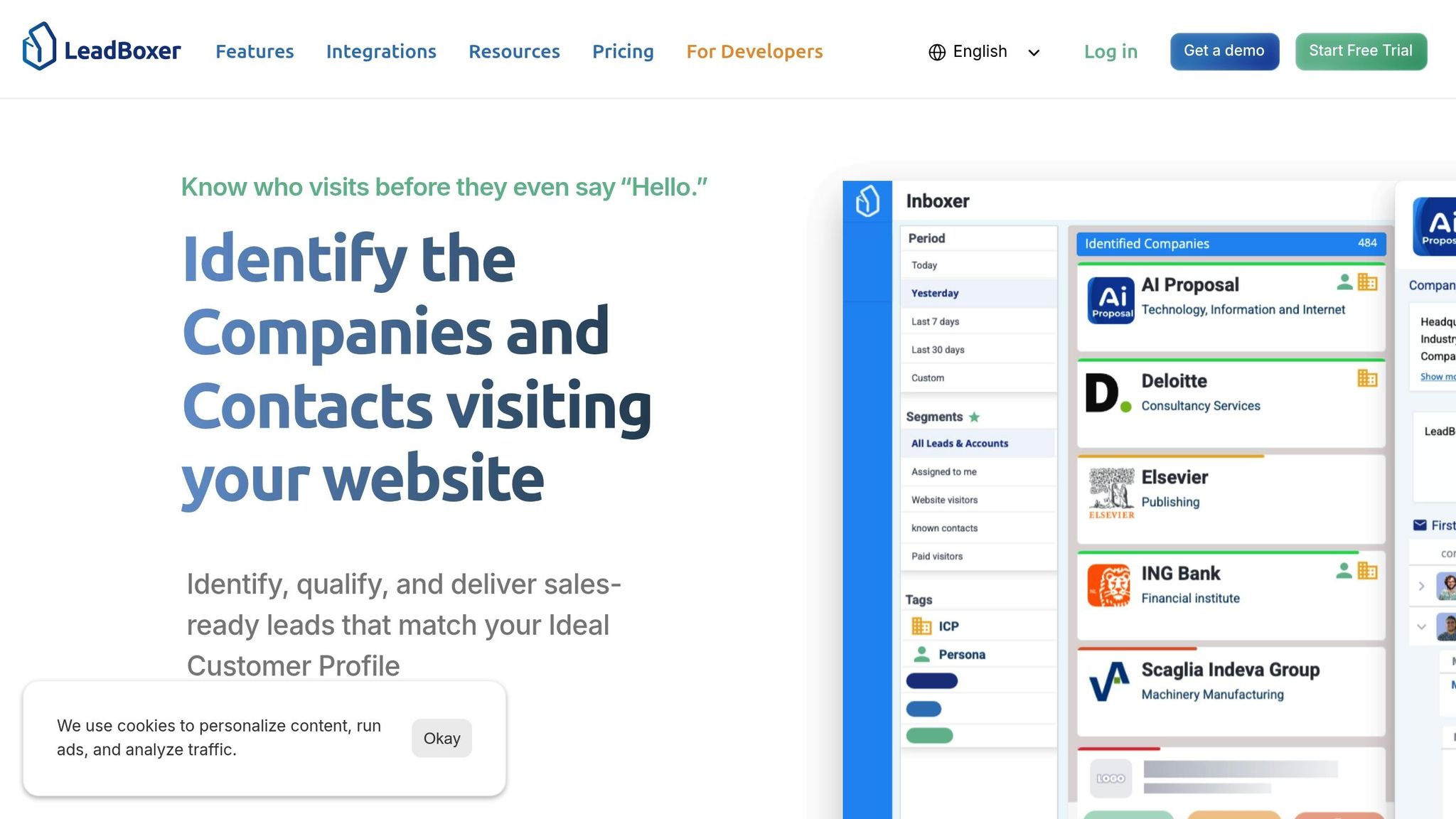
Getting the LeadBoxer node up and running in n8n is a quick and simple process. Before diving into workflow creation, make sure you’ve got everything you need to get started.
What You Need Before Starting
To integrate the LeadBoxer node into your workflows, ensure you have the following:
An active n8n instance: This can be hosted on n8n Cloud or set up as a self-hosted instance. Both options are fully compatible with the LeadBoxer node, so choose what works best for your setup.
A LeadBoxer account with API access: You’ll need an active subscription that includes API credentials. Fortunately, API access is available across all plans, from Starter to Enterprise, so there’s no need to upgrade just for this feature.
Once you’ve confirmed these prerequisites, you’re ready to add and configure the node.
Adding and Configuring the Node
Open your n8n workflow editor and click the + button to add a new node.
In the search bar, type "LeadBoxer" and select it from the results. The node will then appear on your workflow canvas.
Open the configuration panel for the node. You’ll see two primary operations: IP Address Lookup and Domain Lookup. Choose the operation you want to perform. If you need both, you can add additional nodes later.
Under the Credential dropdown, select Create New to set up your API credentials. A dialog box will pop up, prompting you to input your API Key and Dataset ID. The Dataset ID specifies which data collection LeadBoxer should query, especially useful if you’re managing multiple websites or campaigns.
Once you’ve entered your credentials, click Test Connection. If everything is set up correctly, you’ll see a success message, confirming that n8n can connect to the LeadBoxer API.
Save your credentials, and the basic setup is complete.
Where to Find Your API Credentials
To locate your API credentials:
Log into your LeadBoxer account and navigate to the Settings section.
Look for the API or Integrations tab. This is where your authentication details are stored.
Copy your API Key and note your Dataset ID. If you’re managing multiple datasets, ensure you’re selecting the correct ID for your intended workflow.
How to Enrich Leads with IP Address Lookup
IP lookup transforms visitor data into actionable insights. When someone visits your website or submits a form, their IP address can reveal details about the organization they represent and their general location. The LeadBoxer node makes this process automatic within your n8n workflows.
Creating the Workflow
To build an IP enrichment workflow, start by capturing the visitor's IP address from your traffic source. A common method is using a webhook to collect data from form submissions, chat tools, or website tracking scripts.
Here’s how to set it up:
Add a Webhook node with the path
/lead-captureand set the method to POST, as the incoming data will be in JSON format.Connect the LeadBoxer node to the webhook and choose IP Address Lookup from the operations dropdown.
In the IP Address field of the LeadBoxer node, enable the Expression toggle and enter
{{ $json.ip }}. This ensures n8n retrieves the IP address from the webhook data. If the IP is nested differently (like inside a user object), adjust the expression (e.g.,{{ $json.user.ip }}).Send a sample payload to verify the structure of the incoming data.
The LeadBoxer node processes the IP address and returns details such as the organization name, ISP, country, city, and region.
A typical workflow might look like this:
Webhook collects form data → LeadBoxer enriches IP → IF node evaluates data → High-value leads trigger Slack alerts → All leads are logged in Google Sheets → HTTP Response confirms data receipt.
This setup ensures your workflow converts raw IP data into valuable lead intelligence. Once the workflow captures and enriches the data, you can address gaps caused by incomplete or missing information.
Handling Incomplete or Missing Data
Not all IP lookups will return complete information. For example, residential, mobile, or VPN-based IPs may have limited data. While geolocation details like country or city are often available, fields such as the organization name might be empty.
Here’s how to handle these cases:
Add an IF node after the LeadBoxer lookup to check if
{{ $json.organization }}is not empty. This creates two branches: one for leads with valid organization data and another for those without.For leads missing organization details, try alternative methods. If the webhook payload includes an email address, extract the domain and use the Domain Lookup operation. Add another LeadBoxer node, select Domain Lookup, and use an expression like
{{ $json.email.split('@')[1] }}to extract the domain.If neither the IP nor domain provides useful data, route these leads to a separate tracking system. These could represent individual consumers, researchers, or privacy-focused prospects. Store these cases in a separate Google Sheets tab or database table for later review.
To validate IP address quality, use a Function node early in the workflow to check the format:
{{ $json.ip.match(/^(\d{1,3}\.){3}\d{1,3}$/) }}.
For high-traffic workflows, reduce redundant API calls by caching IP lookups for a short period (e.g., 24 hours). Use a Redis node or a Code node with in-memory caching to improve efficiency.
When partial data is returned, decide if it’s enough to proceed. A Function node can assign a quality score based on available fields, directing high-quality leads to your CRM and flagging lower-quality profiles for further enrichment or manual review.
How to Enrich Companies with Domain Lookup
Domain lookup is a powerful way to enhance company records using known websites. Unlike IP lookups, which rely on visitor traffic, domain enrichment taps into existing data from tools like your CRM, spreadsheets, or databases. The LeadBoxer node's Domain Lookup operation transforms a simple domain name into detailed insights about a company, from its size to its technology stack.
Building a Domain Enrichment Workflow
Domain lookup builds on the concept of IP enrichment but offers a more streamlined way to enhance company data.
Start with a data source containing company domains - this could be from a CRM update, a batch process, or a webhook triggered when a prospect submits their company website. Choose a trigger, such as a Schedule Trigger for batch processing or a Webhook for real-time updates, and connect it to your data source (like a CRM or Google Sheets). Then, pass the domain to the LeadBoxer node for enrichment.
Once the LeadBoxer node is added, select the Domain Lookup operation. In the Domain field, enable the Expression toggle and reference the domain from your incoming data. For example, if you're working with HubSpot, you might use {{ $json.properties.domain }}, or for a webhook payload, {{ $json.company_website }}. To standardize the domain, strip prefixes like "https://" or "www." using an expression like {{ $json.domain.replace(/^https?:\/\/(www\.)?/, '') }}.
The LeadBoxer node handles authentication and API calls securely, returning detailed company information, such as the organization’s name, employee count, industry classification, annual revenue estimates, technology stack, social media links, and contact information. This enriched data can then flow into the next steps of your workflow for storage or additional processing.
A sample workflow might look like this:
Schedule Trigger runs daily.
HubSpot retrieves companies missing key details.
LeadBoxer performs domain lookup.
An IF node checks data quality.
All enriched data updates HubSpot company records.
For domains returning minimal or no data, flag them for review using a Function node. Domains with issues - like typos, missing top-level domains, or placeholder values such as "example.com" - should also be flagged for manual review. Newly registered domains might lack sufficient data initially but can be re-enriched after 30 days for updated insights.
Once enriched, the domain data can fuel more precise sales and marketing actions.
How to Use the Enriched Data
Enriched company data is most impactful when it informs targeted business decisions. The insights gained, such as firmographic and technographic details, can help you segment, prioritize, and score leads to improve conversion rates.
Segmenting Leads: Use attributes like employee count, industry, or technology stack to tailor your outreach. For instance, add an IF node after the enrichment process to evaluate
{{ $json.employee_count }}. Leads from large enterprises (1,000+ employees) can be routed to senior sales teams, while smaller businesses might enter a nurture sequence via a Mailchimp node.Technographic Insights: Knowing the tools a company uses can shape your approach. For example, if the lookup reveals a company uses Salesforce, you might highlight your Salesforce integration in your outreach. This data can also be added as custom fields in your CRM for future use.
Lead Scoring: Combine enriched data with behavioral signals for more accurate scoring. Assign points based on factors like company size (e.g., 50 points for companies with 500+ employees), industry alignment, or technology stack compatibility. Use a Function node to calculate the total score and update your CRM’s lead score field. Leads exceeding a certain score can trigger immediate outreach, while others enter automated nurture campaigns.
Revenue-Based Prioritization: Revenue estimates can help identify high-potential accounts. For instance, companies with annual revenues over $50,000,000 may warrant account-based marketing efforts with multiple touchpoints. In contrast, smaller companies might benefit from self-service onboarding or product-led growth strategies.
Contact and Social Data: Social media profiles and contact details can be integrated into your CRM and outreach workflows. Before reaching out, ensure that contact data complies with relevant standards and regulations.
Making Your Workflows More Efficient with Enriched Data
Building on the earlier discussion about data enrichment, these strategies show how to integrate enriched data seamlessly into your workflows. Once you've enriched leads and companies using the LeadBoxer node, you can streamline automation, alert your team at the right time, and cut out unnecessary steps. This approach not only speeds up processes but also complements the initial enrichment efforts.
Updating CRM and Business Systems
After enriching a lead or company through the LeadBoxer node, map the updated fields to your CRM's structure. Most CRM nodes in n8n - like HubSpot, Salesforce, or Pipedrive - can update existing records. Use expressions to reference enriched fields (e.g., {{ $json.employee_count }} for company size or {{ $json.industry }} for industry type). If your CRM doesn’t have standard fields for some of the enriched data, you can create custom fields to store it.
To avoid overwriting valuable existing data, use an IF node to check if a field already has content. Alternatively, set conditions to update fields only if the enriched data is more recent or provides additional details. For example, fields like employee count, revenue estimates, or technology stack details can benefit from periodic updates. Meanwhile, sales notes or custom tags added manually should remain untouched.
Enriched data can also be routed to other platforms, such as marketing automation tools, data warehouses, or analytics systems. For instance, you could use a Google Sheets node to log enriched records for further analysis or a Slack node to share summaries with team channels, creating a unified view across your tools.
Setting Up Alerts for High-Priority Leads
Automated alerts ensure that high-value accounts get immediate attention. After enrichment, use an IF node to identify high-priority leads - such as companies with over 500 employees, annual revenue above $10,000,000, or those using key technologies that align with your product.
Once a lead meets your criteria, route it through notification nodes. A Slack node can post details to a dedicated sales channel, including the company name, enriched data, and a link to the CRM record. An Email node can notify account executives, while for top-tier leads, a Twilio node might send an SMS alert.
These alerts should include the enriched data that qualifies the lead as high-priority, along with direct links to useful resources like the company’s website, LinkedIn profile, or CRM entry. This makes it easier for your team to follow up efficiently.
Reducing Unnecessary API Calls
To improve both performance and cost-efficiency, focus on minimizing redundant API calls for data that doesn’t change frequently or has already been retrieved. Since n8n charges based on full workflow executions rather than individual operations, optimizing your API usage can make a noticeable difference.
Batch and Parallelize API Requests: Group leads and process them together using a Schedule Trigger to run enrichment workflows at set intervals (e.g., hourly or daily). For unrelated records, execute API calls in parallel branches instead of sequentially to save time.
Cache Enriched Data: Store previously enriched company data with a timestamp to avoid repetitive lookups.
Filter Data Early: Add an IF node right after your trigger to check if a record already has complete enrichment data. Only pass incomplete or outdated records to the LeadBoxer node.
Implement Smart Retry Mechanisms: Use n8n’s retry settings with exponential backoff for failed API calls. Add a Wait node between retries to respect API rate limits and prevent throttling.
Conclusion
The LeadBoxer n8n node streamlines the process of enriching leads and company data, taking the manual work out of the equation. Instead of spending countless hours digging for company information or trying to identify website visitors, this tool allows you to pull essential details directly into your workflows with just a few nodes.
This guide walked you through setting up the node, performing IP and domain lookups, handling incomplete data, updating your CRM, and configuring alerts for key leads. These features integrate effortlessly into your workflows, making lead management smoother and more efficient.
By combining data enrichment with smart workflow practices, you can achieve better results. Techniques like batching API requests, caching enriched data, and filtering records before sending them for enrichment help reduce unnecessary API calls while keeping your data current. Routing enriched information to the right tools - whether it’s your CRM, marketing platform, or communication channels - creates a complete and unified view of each lead across your systems.
Automation not only saves time but also ensures you’re working with accurate, up-to-date information. This allows your team to focus on what truly matters: prioritizing high-value prospects and closing deals. With the LeadBoxer node handling the heavy lifting, your team can dedicate their energy to building relationships and driving business growth.
FAQs
How does the LeadBoxer node in n8n improve lead enrichment and workflow efficiency?
The LeadBoxer node in n8n simplifies lead enrichment by using advanced insights to identify companies, analyze website visitor activity, and enhance domain data with detailed company profiles. This allows businesses to pinpoint valuable leads and gain a clearer understanding of customer intent.
By automating these tasks within n8n workflows, the LeadBoxer node minimizes manual work, saves time, and delivers more precise, actionable data for marketing and sales teams.
How can I handle incomplete data effectively when using the LeadBoxer node in n8n workflows?
When working with incomplete data, it's crucial to validate all inputs before diving into processing. Incorporate conditional logic into your workflows to identify missing or incomplete fields, and set up fallback actions to address these gaps smoothly. On top of that, include error-handling mechanisms to log any issues and alert your team about incomplete data. This approach ensures your workflows remain accurate and dependable, even when the data isn't perfect.
How can I use enriched data from the LeadBoxer node in my CRM to improve lead management?
You can effortlessly connect enriched data from the LeadBoxer node to your CRM using automated workflows in n8n. This setup simplifies your lead management by automatically feeding your CRM with detailed information, such as company data from domain lookups or identifying companies based on IP addresses.
Automating this process not only saves time and cuts down on manual data entry but also ensures your CRM stays updated with accurate, real-time information. This way, you can focus on prioritizing and managing leads with greater efficiency.
Related Blog Posts

Versterk uw marketingresultaten met LeadBoxer!
Analyseer campagnes en verkeer, segmenteer op industrie, zoom in op bedrijfsgrootte en filter op locatie. Bekijk uw Toppagina's, topaccounts en vele andere metrics.


LeadBoxer
Leer meer